
Why should i use UTF8 for my csv files?
To ensure your csv files do not contain any odd characters that tracker will not import properly its very important to ensure that you encode your files using UTF8. Common problems if you dont include some characters, for example £ signs, appearing is boxes or odd looking shapes after being imported to tracker.
Its straight forward to start saving as UTF8, we have created step-by-step instructions on how to go about encoding your excel files to UTF-8 and UTF-16. As each version of excel is different, we’ve provided basic instructions for several types.
- Exporting as UTF8 on Excel Versions 1999 to 2010
- Exporting as UTF8 on For Versions of Office 2011 and forward
- Exporting as UTF8 on OpenOffice/LibreOffice
(We highly recommend using the excellent free OpenOffice/LibreOffice to save csv files properly, its the easiest method) - Exporting from order management or ecommerce platforms.
- Exporting from order management or eCommerce platforms.
Exporting as UTF8 on Excel Versions 1999 to 2010
- Step 1: Go to your Excel Document
- Step 2: Click on File (or the Colorful circle icon, depending on the version of Excel you have)

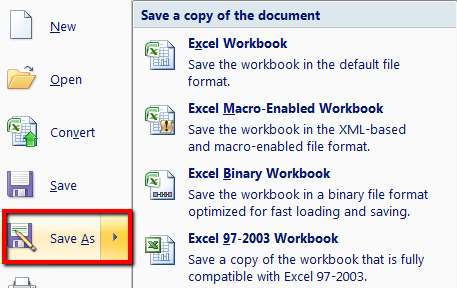
- Step 3: Choose ‘Save As’ and choose the format of the Excel file you’d like to use
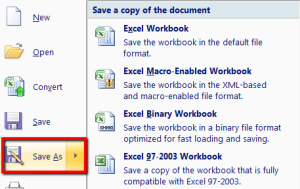
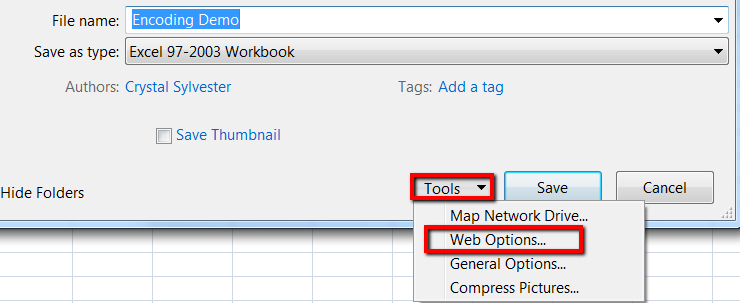
- Step 4: Name your file, and update your file path as needed
- Step 5: Click on Tools, then choose ‘Web options’
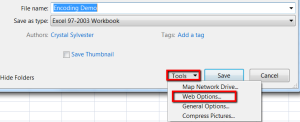
- Step 6: Go to the ‘Encoding‘ tab
- Step 7: In the drop down for ‘Save this document as:’ choose ‘Unicode (UTF-8)’
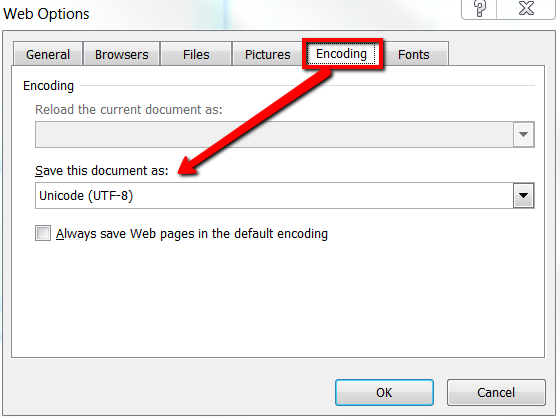
- Step 8: Click Ok
- Step 9: Click Save!
Exporting as UTF8 on For Versions of Office 2011 and forward
Office 2011 and going forward only provide a UTF-16 formatting option.
- Step 1: Go to your Excel Document
- Step 2: Click on ‘File’
- Step 3: Choose ‘Save As’
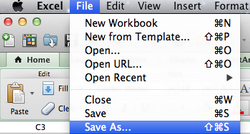
- Step 4: Name your file, and update your file path as needed
- Step 5: Click on the dropdown menu next to ‘Format’
- Step 6: Choose ‘UTF-16 Unicode Text’
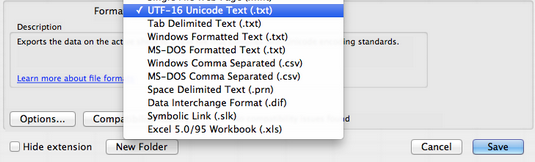
- Step 7: Click ‘Save’ – You may see a warning message (this is because you’re converting the file to UTF-16).
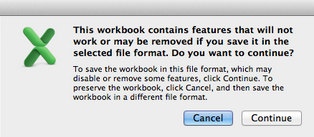
- Step 8: Click ‘Continue‘
Exporting as UTF8 on OpenOffice/LibreOffice
If you do not have access to Excel, you can download the free open-source office software suite called “OpenOffice”. To learn more, please visit: http://www.openoffice.org
- Step 1: Open up OpenOffice, and open your excel document
- Step 2: Click on ‘File’ in the upper left hand corner of your tool bar
- Step 3: Choose ‘Save As’
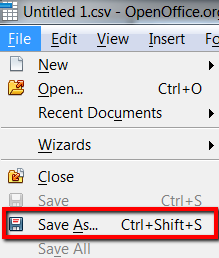
- Step 4: Name your file, and update your file path as needed
- Step 5: Save your ‘Type’ as CSV, and then check the box for ‘Edit Filter Settings’
- Step 6: Click Save
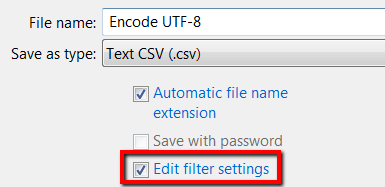
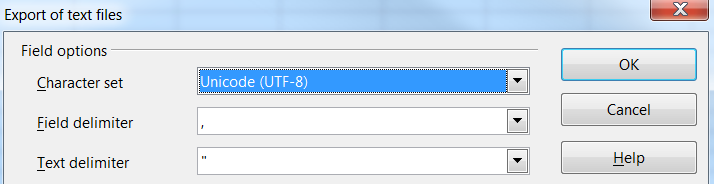
- It will take a moment but an “Export of text files” window will show up with more options
- Step 7: Next to Character Set, choose ‘Unicode (UTF-8)‘
- Step 8: Click OK, and you’re done!
Exporting from order management or eCommerce platforms.
If you use some sort of order management or eCommerce software which exports as CSV, the chances are it is already encoding your files as UTF8. If you are experiencing problems, please consult with your software vendor who will be able to advise if UTF8 is in use and if not, how to easily implement it.
If you have any problems doing this please contact your Panther account manager.